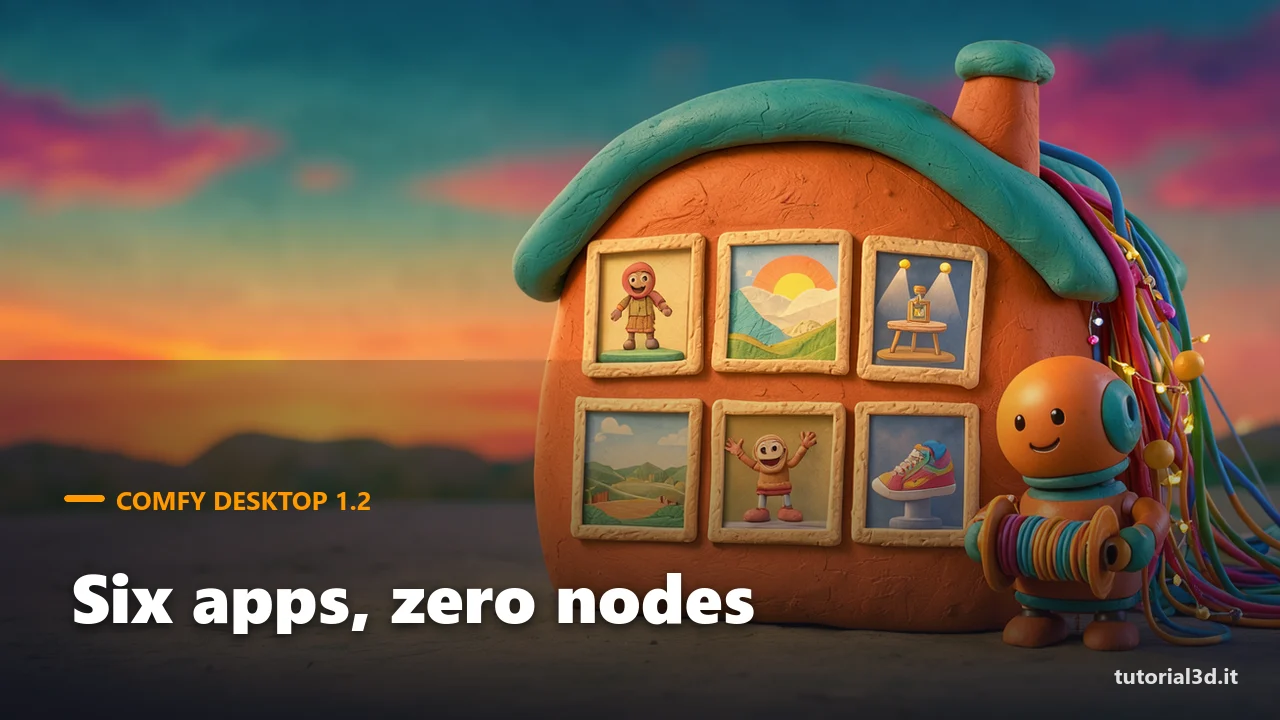
Comfy Desktop 1.2 came out on November 23 and changes how you get into ComfyUI: the home screen now has six apps that each do one job, with no node graph to open. You drop in an image, press a button and get the result. The same ComfyUI as always runs underneath, on your PC or on Comfy Cloud.
Here is how we see it. We work with nodes and we like them, but we know how many people stop at the first screen full of cables. We also know how much time you lose when an update breaks an install that used to work. It's frustrating, especially halfway through a job. This release goes after both problems, with apps for people who are starting out and automatic backups for people who already have everything set up. We haven't tried it yet on our RTX 3060 with 12 GB: what you find here comes from the announcement and the official documentation, plus what we would do.
| What it is | The official app to install, start and update ComfyUI; since 1.2 it also has six ready-made apps you use without nodes |
| Who made it | Comfy Org, the company that develops ComfyUI |
| VRAM required | not stated for the individual apps; a dedicated graphics card is recommended but not required |
| Does it run on an RTX 3060 with 12 GB? | Comfy Desktop does; for each app it depends on the model it uses, and that isn't stated |
| License | dual: AGPL 3.0 or a commercial license from Comfy Org |
| Commercial use from the EU | yes for the program; for the images, the license of the model inside each app applies |
| Where to download it | comfy.org/download, for Windows, macOS (Apple silicon) and Linux |
| Free or paid | the program and the apps built on open models are free on your PC; apps with partner models and anything that runs on Comfy Cloud cost credits |
What changes with Comfy Desktop 1.2?
Comfy Desktop used to be a program that installed and started ComfyUI. With 1.2 it has a Home screen with the apps at the top and your installs on the side, plus a redesigned dark look. The announcement on the Comfy blog is dated November 23.
One word to learn: "build". That is what Comfy Desktop calls every copy of ComfyUI, whether it is installed on your PC, on Comfy Cloud or on another computer reached over the network. You can have more than one, each with its own version and its own custom nodes.
The engine doesn't change. If you work in the graph, it is where you left it, and the apps are an addition. Comfy Org writes that later on users will be able to publish their own apps in their workspace; for now there are only the ones made by its team.
What are the six Comfy Desktop apps and what do they do?
There are six, and each one does a specific job:
- Remove Background cuts out the subject of an image or a video;
- SDR to HDR brings a standard image into high dynamic range (HDR, meaning more detail in bright lights and in shadows);
- Product Ads turns a product photo into advertising images;
- Extend Picture widens the image beyond its edges (outpainting);
- Character Swap replaces a character in a scene;
- Product Swap replaces a product in a scene.
They all work the same way, as the apps page in the documentation explains. You open the app's card, load your file or start from an example, choose where to run it and press the button. Character Swap asks for a bit more: the character image, the video, a prompt, the model and the quality.
What we like most is something else. From every app you can open the workflow behind it in the ComfyUI editor and change it. If you are learning, that's a good way to study: first you see the result, then you look at how it was built. If you read our articles on how to extend a photo with outpainting in ComfyUI or how to cut out a subject with a prompt, the nodes you find there will look familiar.
Are the apps free or do they use credits?
It depends on two things: the model the app uses and where you run it. Browsing and opening apps costs nothing. The documentation gives three rules:
- an app built on open models is free when it runs on your own graphics card;
- an app that uses partner models (paid models from other companies, reached over the internet) spends Comfy Credits wherever it runs;
- on Comfy Cloud you always pay credits, as for any other job you launch there.
This is where the announcement falls short: neither the blog nor the documentation says, app by app, which ones use open models and which ones use partner models. You find out by opening the app and checking what the "Choose where to run" menu offers. In one of the official screenshots Extend Picture runs on the local graphics card, for free. We have no confirmation for the other five, so we don't take them for granted.
When you pick "This computer", Comfy Desktop starts one of your builds in the background, without opening the ComfyUI window, and shuts it down after 10 minutes with nothing to do. Apps don't run on remote builds or on builds from the old version of the app, now called Legacy Desktop.
Is it worth moving to Comfy Desktop if I already use the portable version?
For us, yes, if every update makes you nervous. Before updating, Comfy Desktop saves a "snapshot", a copy of the state of the install, and if something breaks you go back with one click. It is the problem we describe in the updates section of our guide to the most common ComfyUI errors, fixed at the source.
The other changes for people who already have an install are about folders. Models, input files and results are shared across all builds without editing extra_model_paths.yaml by hand. Models downloaded from templates land in the right folder on their own. Each build has a page with updates, startup arguments, folders and snapshots.
You don't have to reinstall everything. With "Add existing build" you connect a ComfyUI you already have, portable or cloned with git, and manage it from there. Two warnings. Comfy Desktop follows the stable ComfyUI release, so brand-new features can arrive later than on the portable version (on the build's page you can switch to the "Latest on GitHub" channel). And the one-click install takes care of Python and dependencies, but custom nodes that break after an update are still a custom node problem: that is what the snapshot is for.
If you stay on the portable version you lose nothing when it comes to models. ComfyUI is the same, and the apps are workflows with a simple interface in front.
Try it now
- Download Comfy Desktop from comfy.org/download. On Windows you need Windows 10 or later; each build takes at least 4.85 GB, models not included. If you already have the app, just update it.
- On first launch the setup screen installs a local build. If you already have a portable ComfyUI, go to Builds, open the arrow next to "New build" and choose "Add existing build".
- If you are coming from the old ComfyUI Desktop, don't add its data folder with "Add existing build": the documentation warns that the migration can no longer start that way. Use "Migrate to Standalone".
- Open Apps, pick Extend Picture, click "Examples" to start from a sample image, set "This computer" and run it.
- Once you have the result, open the app's workflow in ComfyUI and look at which models it loads: that is where you read the license and work out how much VRAM you need.
If you have never opened ComfyUI, after your first app read our beginner's guide to ComfyUI: it explains what you are looking at when you open the graph.
More news
- SenseNova U1.6: SenseTime has published the new version of its 8-billion-parameter model, again under the Apache 2.0 license. It reads the generated image back and fixes wrong text in a second pass. The ComfyUI files are in the Comfy-Org/SenseNova-U1 repository, updated on November 24. We covered the previous version in our article on SenseNova U1.5 in ComfyUI.
- Gemini and HeyGen Decision nodes: since ComfyUI 0.46.2 of November 20 there are nodes that answer yes or no, pick an image or give a score by looking at images, audio or video. They are partner nodes, so they cost credits (changelog).
Frequently asked questions
Is Comfy Desktop free?
Yes, the program is free to download and use, and a local build has no costs. You pay with Comfy Credits only if you use Comfy Cloud or the apps and nodes that call partner models. The code is public on GitHub under a dual license: AGPL 3.0 or a commercial license from Comfy Org.
Do I need a graphics card to use Comfy Desktop?
Not to install it: the documentation recommends a dedicated NVIDIA or AMD card but doesn't require one, and with Comfy Cloud you can work from any computer by paying credits. To generate locally in a reasonable time you do need a graphics card. On a Mac you need an Apple silicon chip (M1 or later) with macOS 13.
Can I use the models I have already downloaded?
Yes. If you connect your install with "Add existing build" you use it as it is. You can also set shared folders for models, input files and results, which every build reads. There is no need to copy dozens of gigabytes from one folder to another.
Do Comfy Desktop apps replace workflows?
No. Each app is a workflow with a simple interface in front, and you can open it in the editor whenever you want. For a quick job that is always the same, the app is enough. When you want to change the model, add a LoRA (a small file that teaches the model a style or a subject) or chain several steps, you go back to nodes.
Our advice: if you are starting from scratch, begin with Comfy Desktop and the apps. If you already have a portable install that works, connect it as an existing build and keep the snapshots. Our free workflows are in the ComfyUI section, and you can find our tests on a 12 GB card on the YouTube channel @tutorial3d.